
Remove image
backgrounds for free.
Use our free AI background remover for photos, or remove a flat color from graphics. Download a full-resolution transparent PNG, with no account or watermark.
or drop a file, paste an image or a


Full-resolution PNG
No paid preview-size download.
Free to use
No account, no watermark.
Photos and graphics
AI cutout or color removal.
Clear processing rules
Computer files stay local. Mobile AI uses our server.
One background remover for portraits, pets and products
Start with AI cutout when your subject is surrounded by a real scene: a portrait in a garden, a pet beside furniture or a product on a desk. The background remover separates the subject so you can reuse it in a profile picture, listing or design. Upload your own image and inspect the result before downloading.
Hair, fur and gaps inside a product need closer attention than a solid outline. Check curls against a dark background and pale fur against a contrasting color. Motion blur, low contrast and objects overlapping the subject can leave missing details or unwanted fragments. A background remover cannot recover detail that was absent from the original photo.
Original photo

Background removed

The same detail, enlarged

Original photo

Background removed
Pet photo: Giovanna Kamimura / Pexels.
Choose color removal for flat backgrounds
For a logo or graphic on one flat color, switch the background remover to Remove a color. Sample the background, then adjust Tolerance to include nearby shades. A higher value can clear uneven paper or compression marks, but may also remove colors you wanted to keep. Clean edges helps reduce the light fringe left by the old background.
Check enclosed areas separately: white inside lettering may be an intentional part of the design. Keep those areas when needed. For a white product on a white background, subject protection can help preserve the object. The dedicated white-background page explains these controls with matching before-and-after examples.
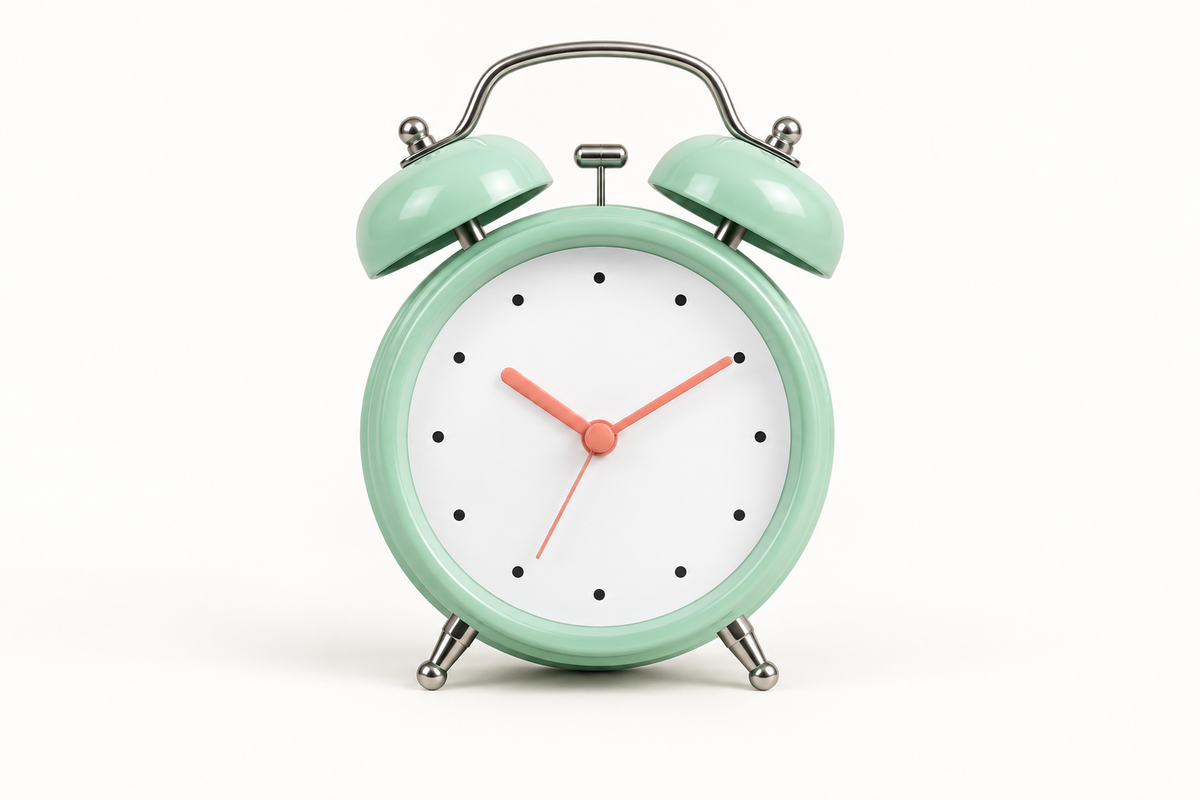
Original photo
Color removed; subject kept
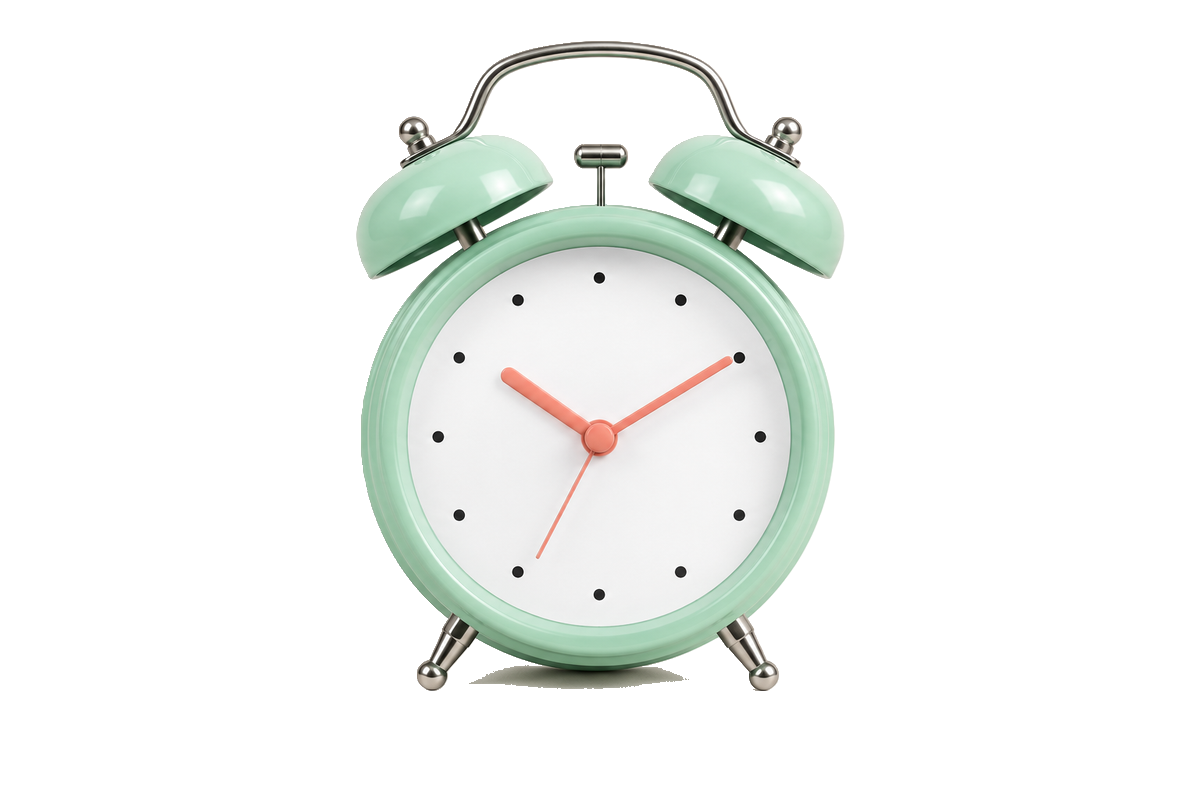
The clock’s pale face and metal need subject protection. Switch tolerance or inspect the enlarged teddy-bear edge to see what each setting changes.
Correct a cutout with Erase and Restore
On a computer, Touch up gives you control after the background remover finishes. Erase removes an unwanted fragment; Restore brings back pixels from your original image. Use a small brush near fingers, curls or product edges. Restore is useful for missing material, but painting too far can also bring the old background back.
Magic helps select an area from a mark, while Follow edges helps keep the brush away from the subject. Compare after each correction and undo a stroke if it changes too much. These controls make local changes; they do not guarantee a perfect result on every image.
Before Erase

Leaf erased

The same detail, enlarged
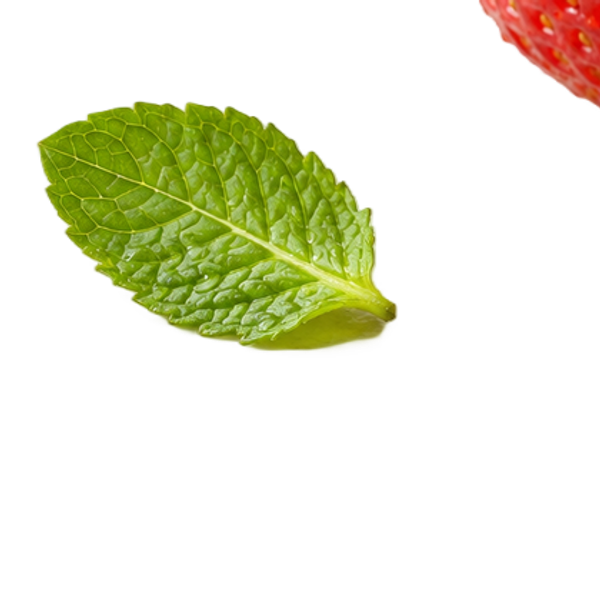
Before Erase
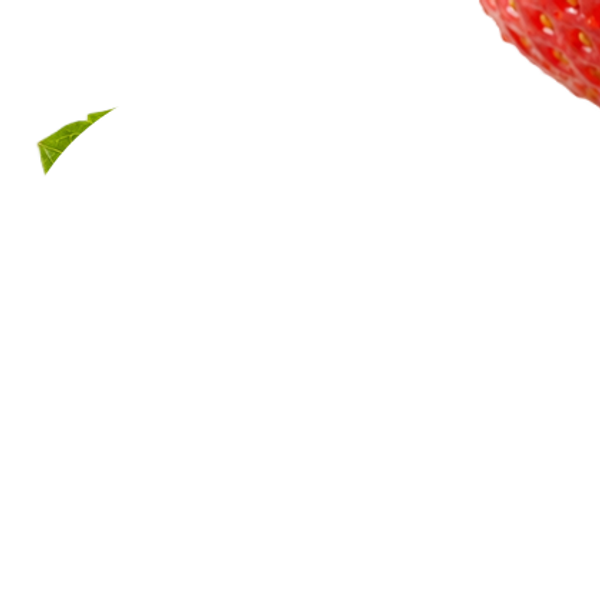
Leaf erased
Restore brings back the bunny’s accidentally erased ear tip. Magic selects the separate lens cap before removal and cleanup. The helmet compares the same brush position with Follow edges off and on.
Clean small leftovers and distractions
Use Remove faint leftovers for translucent haze and Clear specks for tiny isolated dots around a cutout. Check fine hair before accepting stronger cleanup: a background remover may treat faint details and unwanted residue similarly. Follow edges is useful when brushing beside the outline.
Remove item is a different operation. On a computer, it can remove a small distraction sitting on the subject and fill the patch, such as a sticker or stray leaf. It is intended for small repairs, not removing a person or rebuilding a large hidden part of a scene.
Loose crumbs

Clear specks applied

The same detail, enlarged

Loose crumbs

Clear specks applied
Compare the loose crumbs, fine down and small sticker at the same positions. Use stronger cleanup carefully around soft feathers.
Keep transparency or choose a new background
After using the background remover, keep the transparent result for a design app, choose a solid color or upload a background photo. A neutral color can suit a product listing; a photo can place the cutout in a new setting. Preview on both light and dark colors to find remaining edge halos.
Changing the background does not change the subject's lighting or viewpoint. Choose a scene with compatible light and perspective for a more convincing composition.

Choose a color or a photo to see the same bouquet in a new setting. The flowers stay unchanged.
Frame your subject, then choose the right file
Use the crop controls to choose a square or portrait frame, then adjust the subject's size and position. Leave room around hair or the edges of a product. The background remover keeps your loaded image dimensions unless you resize or change the frame; full resolution does not mean an enlarged source gains new detail.
Download PNG or WebP when the next design needs transparency. Choose JPG for a finished picture with a background; transparent areas become white if you have not selected another background. Keep a transparent copy before making a finished listing image so you can reuse the cutout later.
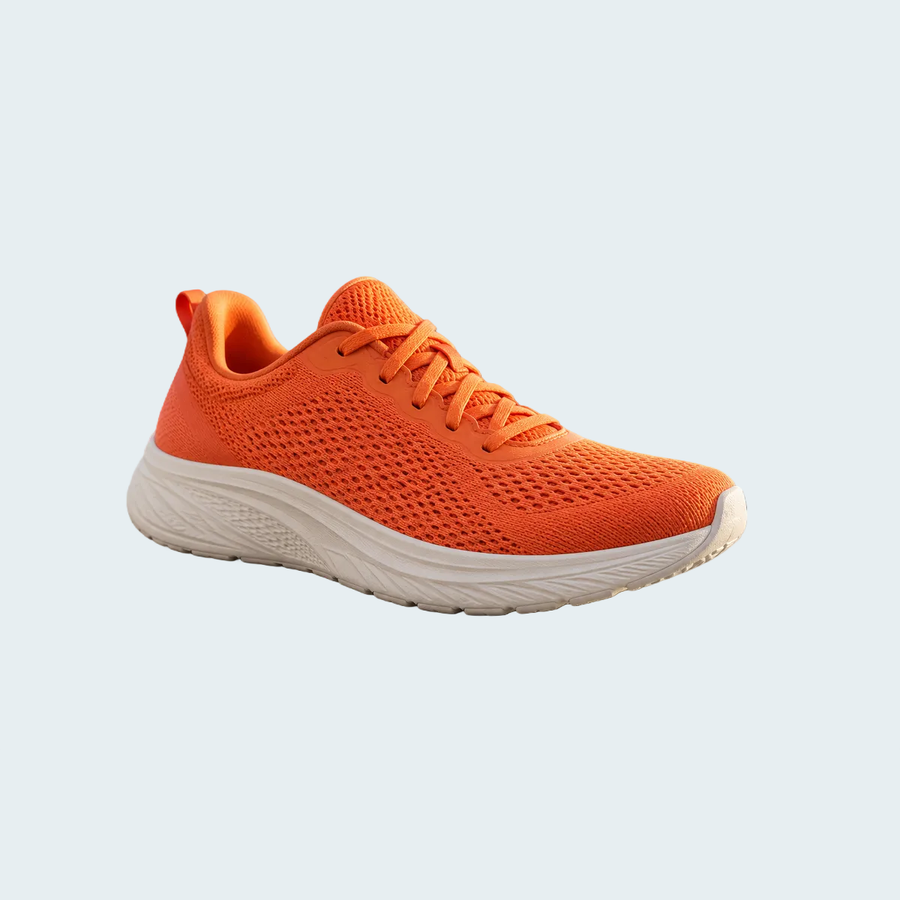
Switch between square and portrait framing, or compare transparent PNG and WebP with a finished JPG. The whole shoe stays visible.
What you get
Check file limits, processing location and free allowances before you start.
- Price
- Free. No sign-up, no watermark.
- Output
- PNG or WebP with transparency, or JPG with a background. Your loaded image size is kept unless you resize or crop.
- File limits
- 50 MB per file; up to 6000 px on the longest side. Larger images can be resized.
- Daily AI allowance
- Computers: no daily quota. Phones and tablets: 30 images or subject-protection runs; ordinary color removal uses no AI quota.
- Where it runs
- Computer files and ordinary color removal stay in your browser.Phone and tablet AI or subject protection use our server. URL imports are fetched by our server.
- Input formats
- JPG, PNG, WebP and HEIC
How to remove the background from a photo
- 1
Upload a photo
From Photos, or paste an image or link.Drop a file, paste an image or a URL.
- 2
Check the edges
Compare the result and adjust the removal settings.Compare the result; use Erase or Restore for local corrections.
- 3
Download
Choose transparent PNG or WebP, or add a background before saving.
Questions
Short answers about price, privacy and output.
Is this background remover free?
Yes. Downloads have no watermark and require no account. Computers have no daily AI quota. Phones and tablets have a daily allowance of 30 image AI or subject-protection runs; ordinary color removal does not use that allowance.
Are my photos uploaded?
The background remover processes local files in your browser on a computer. Phone and tablet AI or subject protection use our server; ordinary color removal can run locally. Pasting an image URL asks our server to fetch that public image.
Why does my transparent image look white?
Some viewers display transparency on white. Place the PNG or WebP over a colored background to check. If you downloaded JPG, the background is part of the file: export a transparent format instead.
Which files does the background remover accept?
Upload JPG, PNG, WebP or HEIC, up to 50 MB. Images above 6000 pixels on the longest side can be resized before processing. Animated GIF, APNG and WebP belong in the dedicated animation tool.
Can the background remover fix every edge?
No. Blur, pale hair against a pale wall and overlapping objects can be difficult. Try another preview background, adjust cleanup and use desktop Erase or Restore where needed. A sharper original often helps more than repeated corrections.
Can I use a background remover on my phone?
Yes. Upload from your photo library, review the result and download. The main removal and background options work on phones; the desktop Touch up tools provide more control for local corrections.
Why can the first image take longer?
On a computer, the AI background remover loads its processing files before it can make the first cutout. Connection speed, image size and the device affect the wait. Keep the page open while it works; a first-run delay is not a reliable estimate for every later image.
What if my HEIC photo will not open?
The background remover accepts HEIC, but an individual file can still fail to decode. Export a JPG or PNG copy from your photo app and upload that copy. Keep the original HEIC if you need to preserve its source file for later editing.
Try it with your own image
Check the result, choose your background and download when you are ready.
Upload ImageRelated toolsGIF background removerWhite background remover